
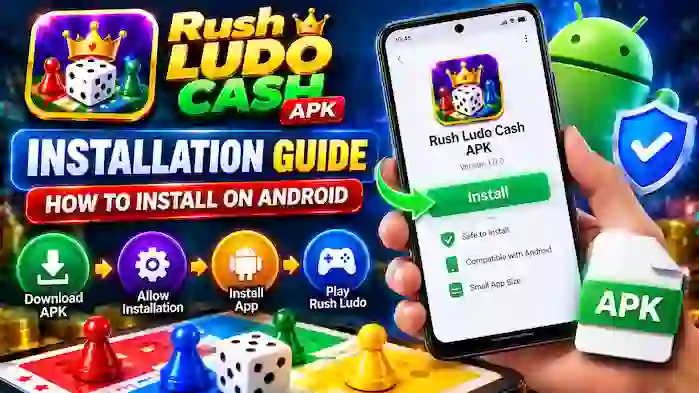
Installing Rush Ludo APK on an Android device depends on the source of the application and the compatibility of the APK with your device. This guide explains the installation process, compatibility checks, common installation errors, and safety considerations.
If the application is available through an official app store, using that distribution method is preferable. For APK files obtained elsewhere, verify the source and file carefully before installation.
What Is Rush Ludo APK Installation?
An APK is the package format used by Android to install applications. When you install Rush Ludo APK manually, you are using an APK file rather than the normal app-store installation process.
The steps can vary slightly between Android versions and device manufacturers.
Before Installing Rush Ludo APK
Before opening an APK file, check the following:
- Your Android version meets the application’s requirements.
- There is enough free storage.
- The APK comes from a source you trust.
- The file has the expected name and format.
- The application permissions make sense.
- Your device has its normal security protections enabled.
For applications involving accounts, rewards, or payments, source verification is particularly important.
How to Install Rush Ludo APK
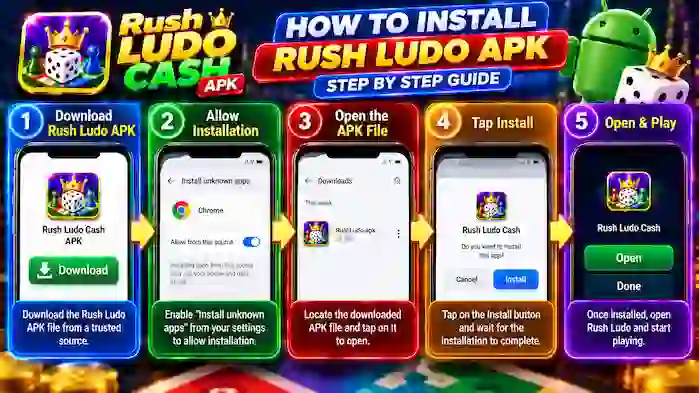
Step 1: Get the APK From a Trusted Source
Obtain the Rush Ludo APK from a source you trust and verify the application name and version.
Avoid files that make unrealistic claims or are bundled with unrelated applications.
Step 2: Check the Downloaded File
Before installation, check the downloaded file and make sure it is an Android APK package.
If the file appears incomplete, has an unexpected extension, or came from a suspicious website, do not open it.
Step 3: Allow Installation From the Relevant Source
Android versions may require permission for installing an APK obtained outside an app store.
If your device displays a security prompt, review the source carefully before allowing installation. On newer Android versions, this permission can usually be managed for the specific application being used to open the APK.
Step 4: Open the APK
Use your device’s file manager or download notification to locate the APK.
Tap the file and review the installation screen.
Step 5: Review the Installation Request
Check the application name and any permissions or information displayed by Android.
Do not continue if the package appears different from the application you intended to install.
Step 6: Complete Installation
If the package is compatible and Android accepts it, follow the on-screen installation instructions.
Once installation finishes, you can find the application in your device’s app list.
Step 7: Open Rush Ludo
Launch the installed application and complete any required setup.
If the application requires an account, use the service’s legitimate account process and avoid sharing passwords or verification codes with anyone.
Rush Ludo APK Compatibility
Not every APK works on every Android device.
Compatibility can depend on:
- Android version
- Device hardware
- Available RAM
- Free storage
- Processor architecture
- Application version
- Regional availability
If installation fails even though the APK appears valid, check whether your Android version supports the particular release.
Common Rush Ludo APK Installation Problems
APK Is Not Installing
Several issues can prevent installation:
- Incompatible Android version
- Corrupted download
- Insufficient storage
- Existing conflicting installation
- Unsupported APK architecture
- Security restrictions
Start by checking the file and device requirements rather than repeatedly downloading unknown APKs.
“App Not Installed” Error
This message can occur when Android detects a compatibility or package conflict.
If an older version of the same application is already installed, the package may not be compatible with it. Check the application version and installation source.
Downloaded APK Will Not Open
A damaged or incomplete download can prevent an APK from opening.
Check the file and download it again only from a trustworthy source if necessary.
Installation Is Blocked
Android can block an installation for security or compatibility reasons.
Review the security message carefully. Do not disable important device protections simply to install an unknown package.
Not Enough Storage
Insufficient storage can stop an installation from completing.
Check your available storage and remove unnecessary files if appropriate.
What to Do After Installation
After installing Rush Ludo APK:
- Open the application.
- Check that the interface loads correctly.
- Review available settings.
- Check the application’s permissions.
- Confirm that your account functions work normally if an account is required.
- Avoid entering sensitive financial information into an unfamiliar interface.
If the application crashes immediately, check compatibility and whether a legitimate update is available.
Is Rush Ludo APK Safe to Install?
Safety depends heavily on where the APK came from and whether the package has been modified.
For safer installation:
- Prefer an official distribution channel when available.
- Verify the publisher.
- Review permissions.
- Keep Android security features enabled.
- Avoid modified APKs from unknown sources.
- Do not install additional packages offered by suspicious download pages.
- Never share passwords or verification codes.
An APK’s file name alone does not establish that the package is authentic.
Updating Rush Ludo APK
If you installed Rush Ludo manually, future updates may also need to be verified before installation.
Before updating, check:
- New version number
- Compatibility
- Source of the update
- Changes to permissions
- Release information
Avoid installing a new package from an unrelated source simply because it claims to be a newer version.
Uninstalling Rush Ludo APK
If you no longer want the application, Android normally allows you to uninstall it through the device’s application settings.
Before uninstalling, make sure you understand whether locally stored data or account information could be affected.
If you have important account information, follow the service’s official account procedures first.
Frequently Asked Questions
How do I install Rush Ludo APK on Android?
Download a compatible APK from a trusted source, verify the file, follow Android’s installation prompts, and open the application after installation.
Why is Rush Ludo APK not installing?
Possible causes include an incompatible Android version, corrupted APK, insufficient storage, package conflicts, or security restrictions.
Can I install Rush Ludo APK on every Android phone?
No. Compatibility depends on the APK release, Android version, device hardware, and other requirements.
Is it safe to install an APK outside an app store?
Third-party APK installation can carry additional security risks. Verify the source and package before installing.
What should I do if Android blocks the APK?
Read the security message and verify the source. Do not disable important security protections just to install an unknown package.
Can I update Rush Ludo APK manually?
Manual updates are possible when a compatible package is available, but the new file should be verified before installation.
Final Thoughts
The Rush Ludo APK installation process is generally straightforward when the APK is compatible and comes from a trustworthy source. Before installing, check your Android version, available storage, application source, permissions, and package information.
If you encounter an installation error, identify the specific cause first instead of repeatedly installing files from unknown websites. For broader gameplay information, see the How to Play Rush Ludo APK guide and the other Rush Ludo resources in this content cluster.