
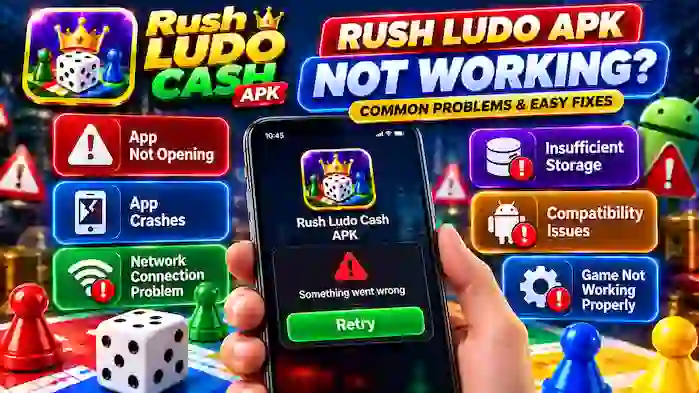
If Rush Ludo APK not working is preventing you from opening or using the app normally, the cause may be related to compatibility, storage, network connectivity, corrupted app data, or an outdated version.
This guide covers common Rush Ludo problems and practical troubleshooting steps without assuming that every issue has the same cause.
Why Is Rush Ludo APK Not Working?
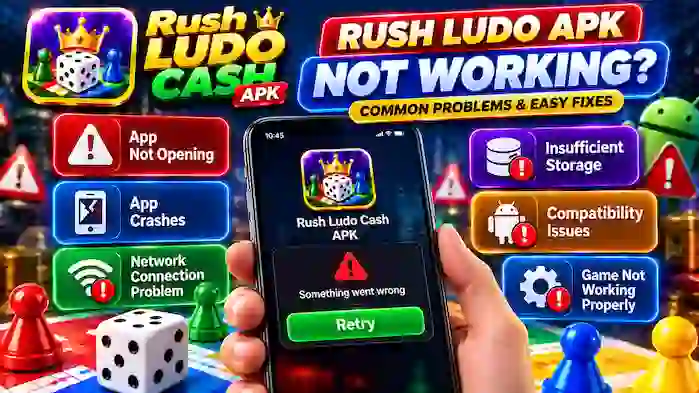
An Android game can stop working for several reasons, including:
- Unsupported Android version
- Outdated application
- Corrupted app files
- Insufficient storage
- Weak internet connection
- Temporary server problems
- Permission issues
- Device performance limitations
- Conflicts with another installation
The exact cause depends on the error you are seeing.
1. Check Your Internet Connection
Rush Ludo features that require online services may not work correctly without a stable connection.
Try:
- Switching between Wi-Fi and mobile data.
- Restarting your router if you are using Wi-Fi.
- Checking whether other online apps work normally.
- Avoiding unstable networks during multiplayer matches.
If only Rush Ludo is having problems while other apps work normally, the issue may be related to the application or its servers.
2. Restart Rush Ludo
A temporary application process can sometimes cause the game to freeze or stop responding.
Close the application completely and open it again.
If the problem continues, restart your Android device and try launching the application again.
3. Check Android Compatibility
An older Android version may not support a newer application release.
Check:
- Android version
- Available storage
- RAM
- Device architecture
- Application version
If the current release requires a newer Android version, installing the same package repeatedly will not resolve the compatibility issue.
4. Free Up Storage Space
Low storage can cause applications to crash, fail to update, or behave unexpectedly.
Check your available storage and remove unnecessary files or applications if appropriate.
After freeing space, restart the device and try opening Rush Ludo again.
5. Clear Temporary App Cache
If the application has accumulated corrupted temporary data, clearing its cache may help.
On many Android devices, you can find this option through:
Settings → Apps → Rush Ludo → Storage → Clear Cache
Menu names can vary depending on the Android manufacturer and version.
Clearing cache is different from clearing application data. Clearing data can remove locally stored settings or require you to sign in again.
6. Check App Permissions
Some applications require specific permissions to provide certain functions.
Open the Android application settings and review the permissions assigned to Rush Ludo.
Only allow permissions that are relevant to the application’s expected functionality. Avoid granting unrelated or unnecessary access.
7. Update Rush Ludo
An outdated application can stop working properly after Android or server-side changes.
If a legitimate update is available, check the version information and update through a trusted distribution source.
Avoid downloading random APK files simply because they claim to be the newest release.
For more information, see the Rush Ludo APK Update Guide.
8. Check for Server Problems
Sometimes the application itself is working correctly, but an online service is temporarily unavailable.
Possible signs include:
- Multiplayer not loading
- Login problems
- Matchmaking not responding
- Rewards or account information failing to load
- Repeated connection errors
If other users are experiencing the same issue, waiting for the service to recover may be necessary.
9. Rush Ludo APK Crashes on Startup
If the app closes immediately after opening, possible causes include:
- Incompatible Android version
- Corrupted application data
- Insufficient storage
- Outdated application
- Device resource limitations
Start by restarting the device and checking compatibility. If the problem continues, verify whether a legitimate compatible version is available.
10. Rush Ludo Freezes During Gameplay
A game that freezes during a match can be affected by device performance, network instability, or temporary application problems.
Try:
- Closing background applications.
- Checking your internet connection.
- Restarting Rush Ludo.
- Restarting the device.
- Checking for a compatible update.
Avoid repeatedly reinstalling unknown APK files as a troubleshooting method.
11. Multiplayer Is Not Working
If single-player features work but multiplayer does not, check the internet connection and the selected game mode.
Multiplayer can also depend on:
- Server availability
- Matchmaking activity
- Region
- Account status
- Application version
For detailed multiplayer information, see the Rush Ludo APK Multiplayer Guide.
12. Login Is Not Working
If you cannot log in, verify that your account information is correct.
Also check whether:
- The service is currently available.
- Your internet connection is stable.
- The application is updated.
- The account requires additional verification.
Never give your password or verification code to another person claiming to fix your account.
13. APK Installation Problems
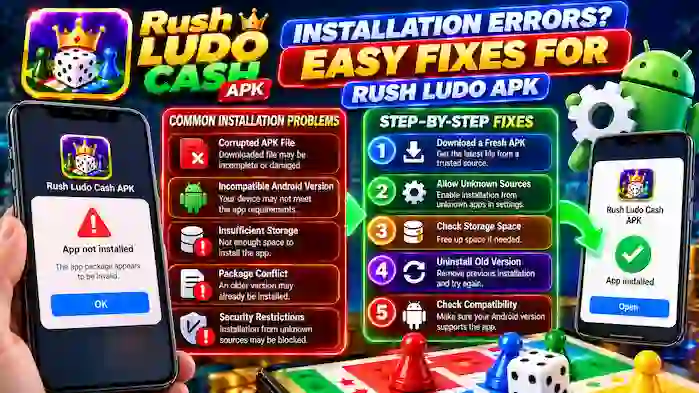
If Rush Ludo does not install at all, the problem may be with the APK rather than the running application.
Possible causes include:
- Damaged download
- Unsupported Android version
- Insufficient storage
- Package conflict
- Incompatible architecture
- Security restrictions
Check the Rush Ludo APK Installation Guide for installation-specific information.
14. Reinstalling Rush Ludo
If other troubleshooting methods do not work, reinstalling a legitimate compatible version may help.
Before uninstalling, consider whether local settings or account-related information could be affected.
After removal, only reinstall the application from a source you trust.
Safety When Troubleshooting APK Problems
Avoid troubleshooting methods that require installing several unknown APK files.
Be particularly cautious with websites claiming to provide:
- Unlimited rewards
- Guaranteed winnings
- Special account access
- Modified payment features
- “Error-free” versions
An APK file can be modified, and its file name does not prove authenticity.
For applications involving accounts, rewards, or payments, protect your credentials and financial information.
Quick Troubleshooting Checklist
If Rush Ludo is not working, go through these checks:
- Restart the app.
- Restart your Android device.
- Check your internet connection.
- Check available storage.
- Verify Android compatibility.
- Review application permissions.
- Clear temporary cache.
- Check for a legitimate update.
- Check whether online services are available.
- Reinstall only from a trusted source if necessary.
Frequently Asked Questions
Why is Rush Ludo APK not opening?
Possible causes include compatibility problems, corrupted data, insufficient storage, an outdated version, or temporary application issues.
Why does Rush Ludo keep crashing?
Check your Android version, available storage, application version, and temporary app data. Device performance can also affect stability.
Why is Rush Ludo multiplayer not working?
Multiplayer can be affected by internet connectivity, matchmaking availability, server problems, account issues, or application compatibility.
Will clearing cache delete my account?
Clearing cache normally removes temporary files rather than account information, but Android menus and application behavior can vary.
Should I download another APK if Rush Ludo is not working?
Not necessarily. First identify the cause of the problem. Installing unknown APK files can create additional security and compatibility risks.
How can I fix Rush Ludo installation errors?
Check Android compatibility, storage, package conflicts, and the integrity of the APK. Use a trusted distribution source whenever available.
Final Thoughts
When Rush Ludo APK is not working, the cause can range from a simple network problem to Android compatibility or temporary server issues. Start with basic checks such as restarting the application, verifying your connection, checking storage, and confirming compatibility.
If the problem involves installation, login, multiplayer, or updating, focus on that specific issue instead of repeatedly installing different APK files. This approach can help identify the actual cause while reducing unnecessary security risks.